 AddressGrabber Business
The Fastest Way to Extract Contact Details from
The Ultimate Contact Capture Tool for Smart Businesses
Capture & Organize Contacts Seamlessly with AddressGrabber

Sales Reps
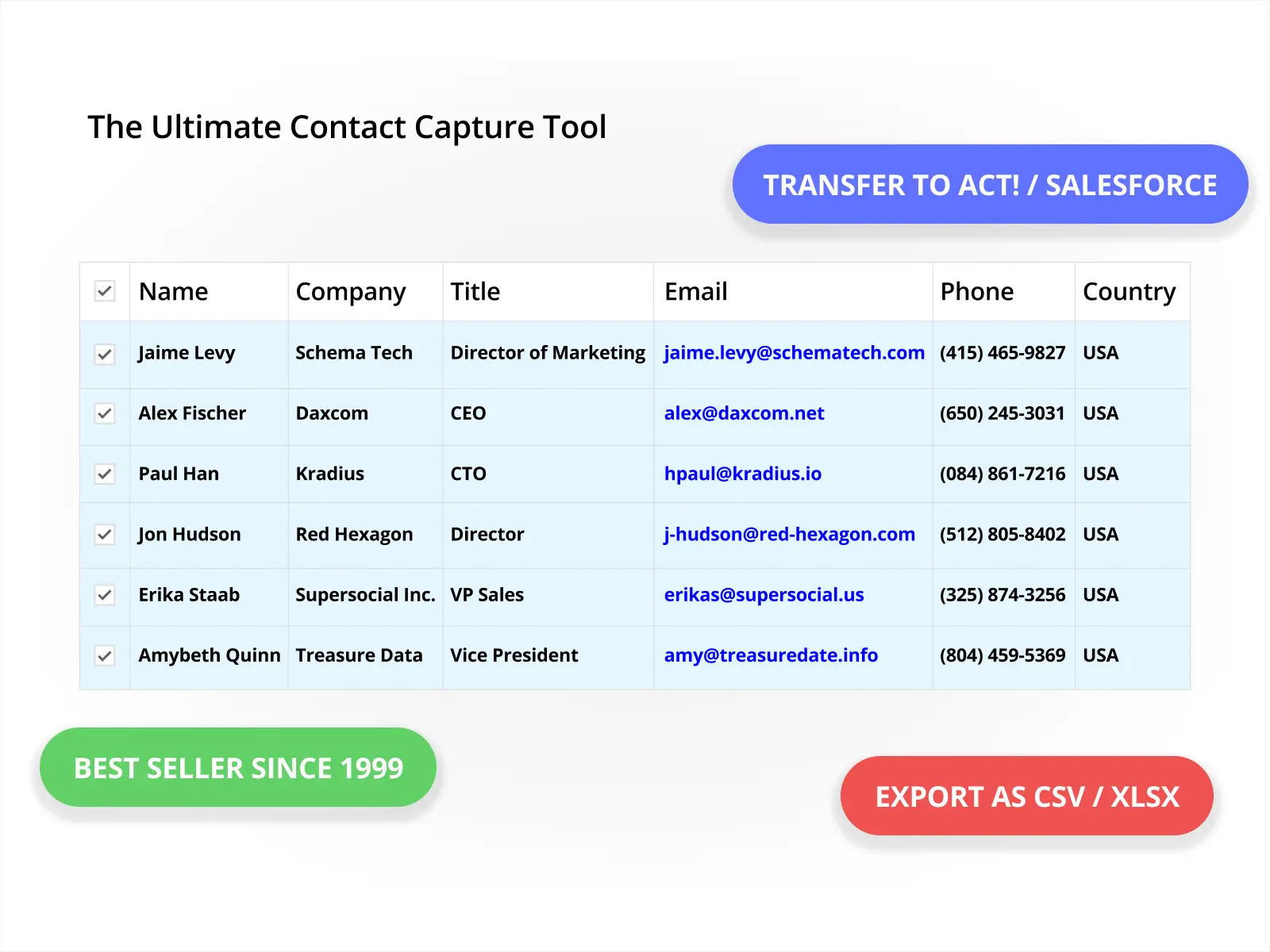
Manually entering contacts wastes your selling time. AddressGrabber automates capture from emails, websites, and more, integrating seamlessly with your CRM (ACT!, Salesforce) so you can focus on closing deals.

Small Businesses
Don't let manual data entry slow you down. AddressGrabber streamlines lead capture and ensures data accuracy across applications (CRM, accounting, shipping) - all without a dedicated data team.

Marketing Teams
Build targeted campaigns with confidence. AddressGrabber enriches your CRM with accurate leads from various sources, eliminating duplicates for a clean database.
 AddressGrabber Business
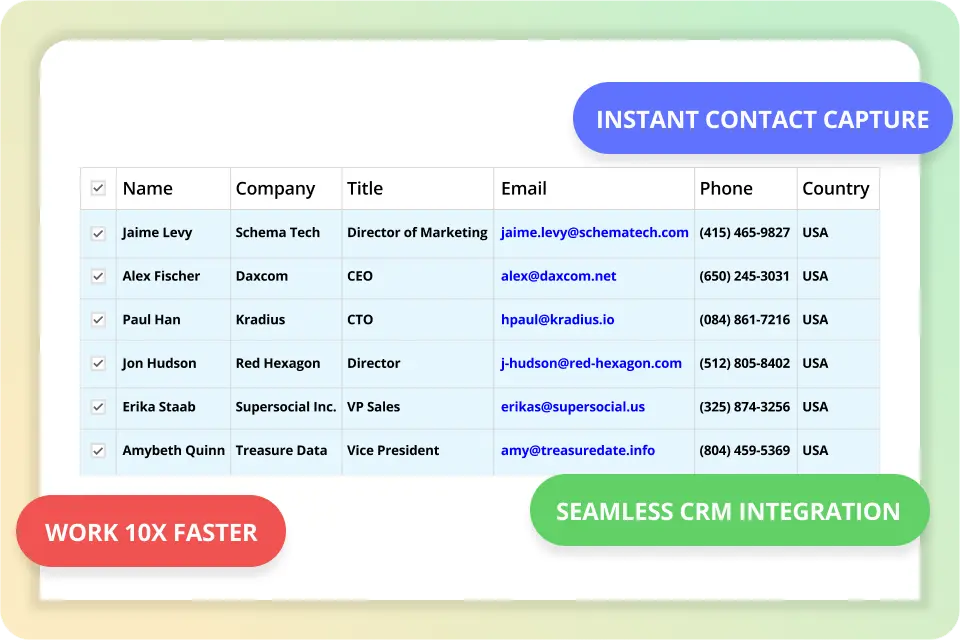
Instant Contacts: Populates your Address Book in Seconds
AddressGrabber intelligently extracts all contact details (including name, company, address, email and phone) from any text and transfers it into popular address books within seconds!
 AddressGrabber Business
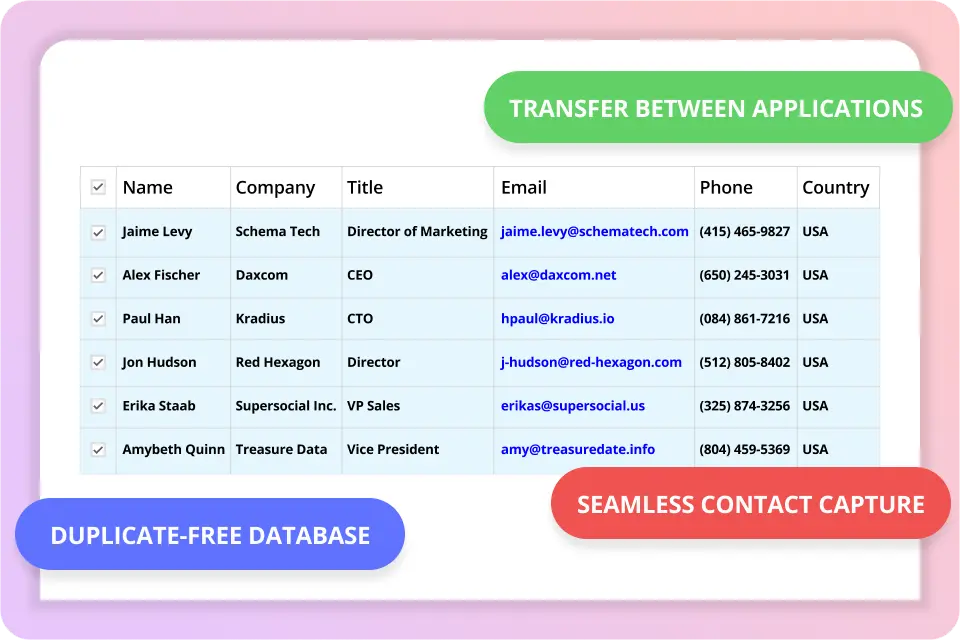
Seamless Contact Sharing: Move Leads Between Apps with One Click
AddressGrabber enables you to share contact information between ACT!, MS Outlook, MS Excel and more...
 AddressGrabber Business
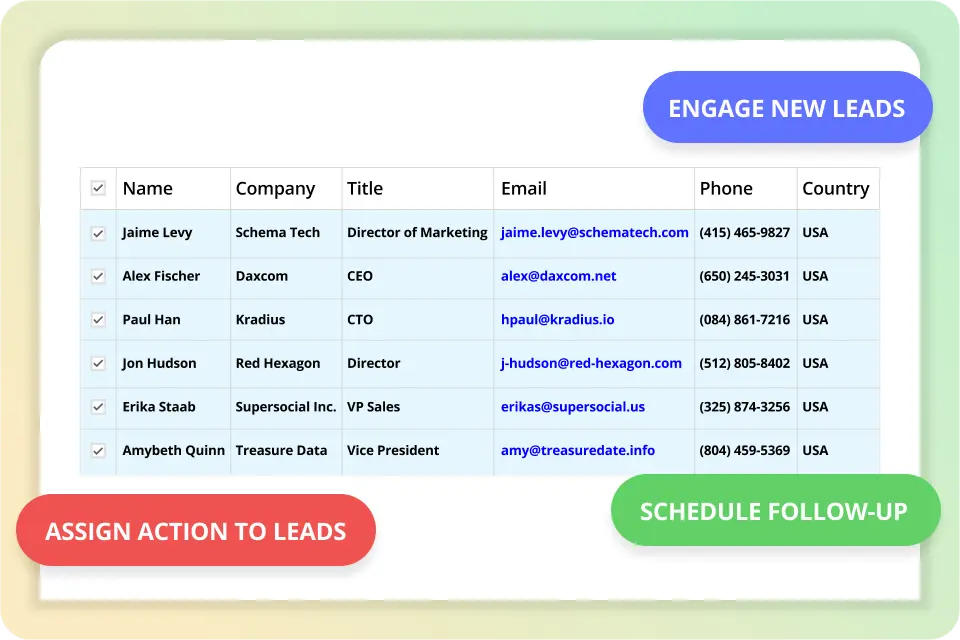
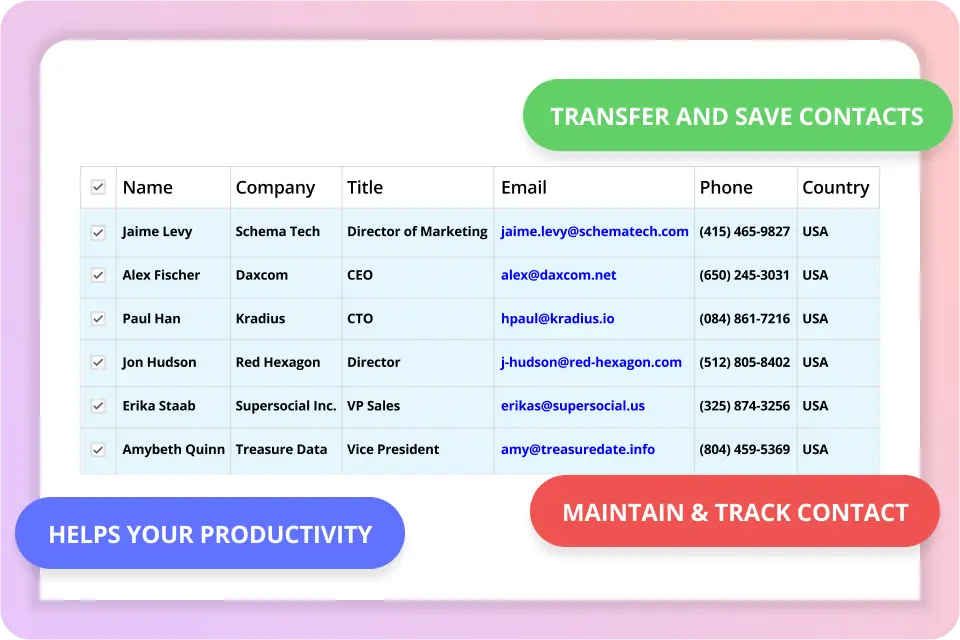
Turn Leads into Action: Schedule Activities Alongside New Leads
With AddressGrabber, you can schedule activities for each transferred contact.
 AddressGrabber Business
Never Lose Track: Transfer Contact Info Directly into Notes
AddressGrabber enables you to transfer contact information to notes section of Microsoft Outlook and ACT!
 AddressGrabber Business
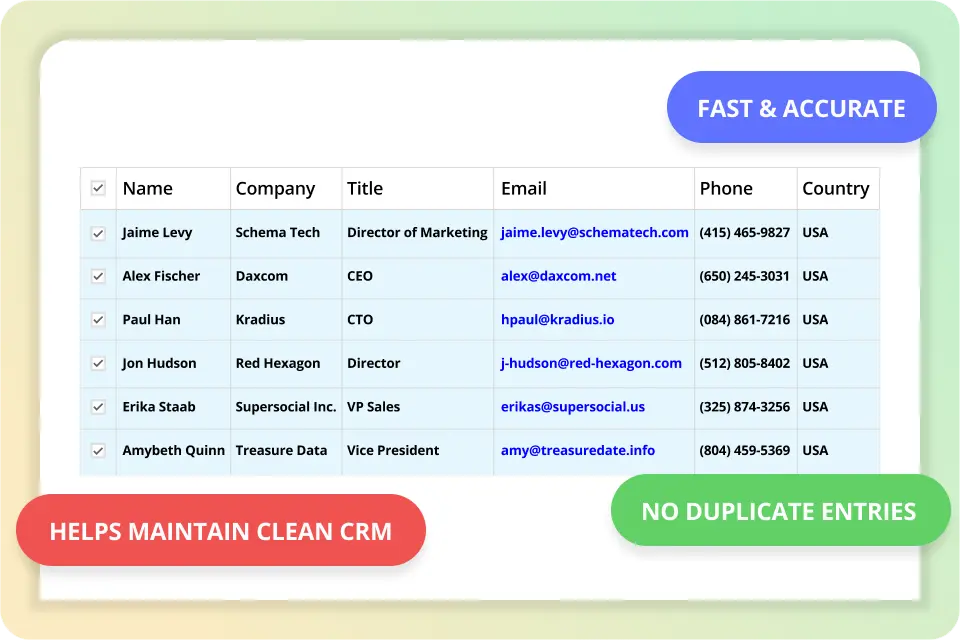
Say Goodbye to Duplicates: AddressGrabber Ensures a Clean CRM!
AddressGrabber is fast and accurate in checking duplicate entries. Eliminates duplicates and helps you maintain duplicate-free database.
Frequently Asked Questions
AddressGrabber™ automatically extracts Salutation, Name, Company, Title, Address, Phone, Fax, e-mail and Web address; transfers them into the corresponding fields of your destination application, with just one click.
It includes enhanced features such as mapping web form tags for better accuracy while capturing web forms, verify addresses in USPS website, schedule activities and processes. This software also supports a number of popular applications.
Salutation
Company
Address
Zip
Phone1 [Ext]
Pager
Website
FirstName
Job Title
City
Country
Fax
Email
+ 15 User Defined Fields
LastName
Department
State
Phone [Ext]
Mobile
Email 1
- Act! v25 (2023) (Desktop App) 25.0.376.0, Act! v24 (2022) (Desktop App) 24.0.204.0, Act! v23 (2021) (Desktop edition only) 23.0.156.0, Act! v22 (2020) (Growth edition only) 22.0.205.0, Update 2, ACT! v21 (2019)(pro / Premium), ACT! v20 (2018)(pro / Premium), ACT! v19 (2017)(pro / premium), ACT! v18 (2016)(pro / premium), ACT! v17 (2015)(pro / premium), ACT! v16 (2014)(pro / premium), ACT! 2013(pro / premium), ACT! 2012(pro / premium), ACT! 2011(pro / premium)
- MS Outlook 365 (desktop only)
- MS Outlook 2016 / 2013 / 2010 / 2007 / 2003
- MS Excel 365 (desktop only)
- MS Excel 2016 / 2013 / 2010 / 2007 / 2003
- Microsoft® Windows 10 Professional/Enterprise (32 bit and 64 bit)
- Microsoft® Windows 8 Basic / Pro (32 bit & 64 bit). Does not Support Windows 8 RT
- Microsoft® Windows 7 (32-bit) Professional Edition
- Intel Core 2 Duo or equivalent recommended 1 GB RAM or as required by the OS.
- 75 MB free space in Hard Disk to install
- 30 MB free space to run the application
*** Works best with US and Canadian addresses.
To keep our Price competitive, For standard license purchases we provide the following license agreement and this FAQ.
We can provide additional info if required, for deal sizes closer to $100K. The deal has to cover the costs of legal review by our attorneys.
The information on our products and our company can be researched on the web and through our FAQ.
Tired of manually entering leads and battling duplicates?
AddressGrabber automates contact capture from emails, websites, and documents; avoid duplicates. Download your free trial now and experience the difference AddressGrabber can make!