AddressGrabber Standard  
The quickest way to capture contact  
 
PDF Support Documents


  About AddressGrabber™ Standard

  Installation & Registration FAQs

  Troubleshooting FAQs

  About AddressGrabber™ Standard

What is AddressGrabber™ Standard?

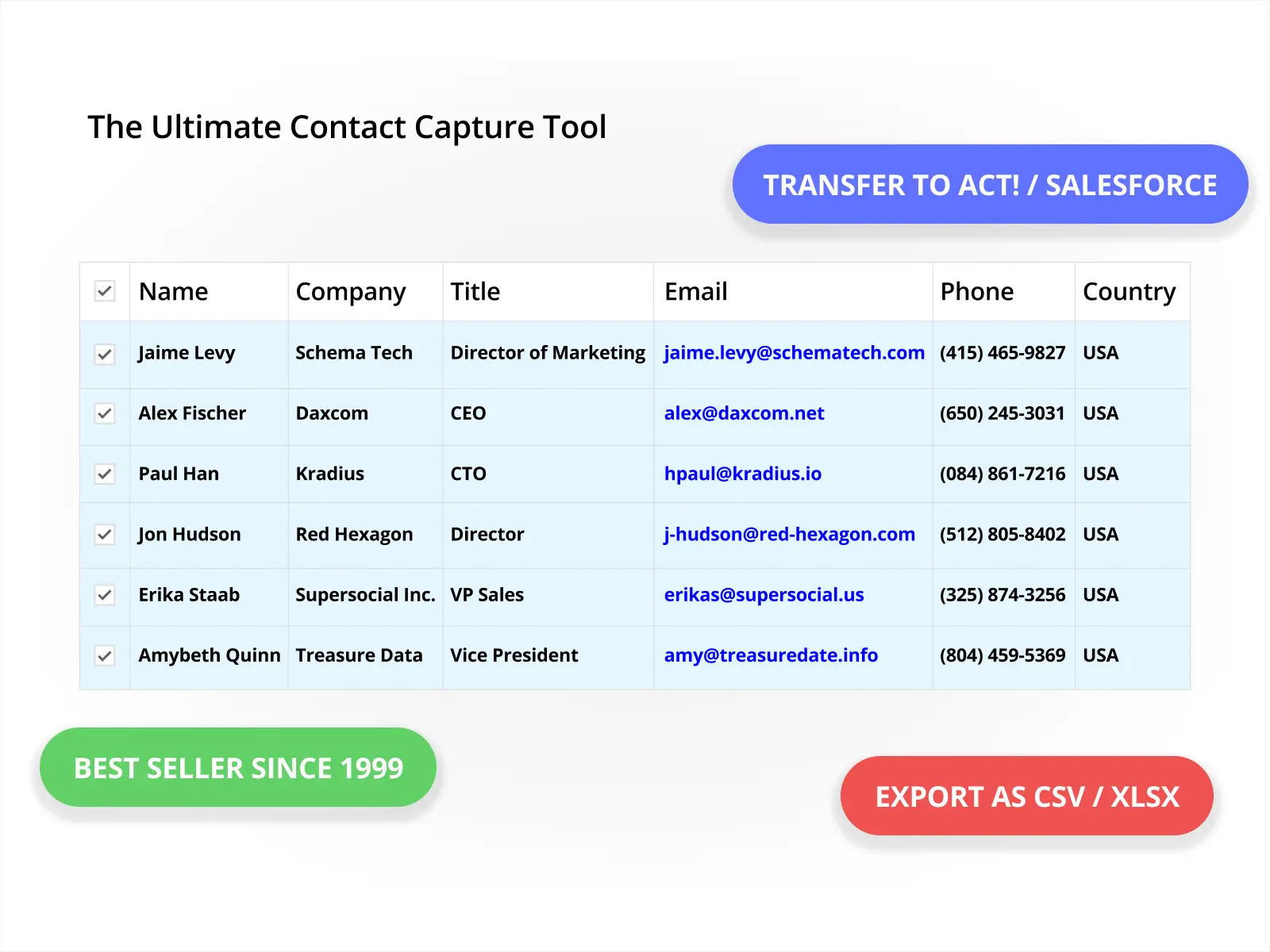
AddressGrabber™ captures addresses from email, Web pages, Spreadsheets, Database, PDAs, etc., and smartly transfers them to your application by a single click.

AddressGrabber™ automatically extracts Salutation, Name, Company, Title, Address, Phone, Fax, email, and Website; transfers them into the corresponding fields of your destination application, with just one click.

Back to top

What applications does AddressGrabber™ support?

AddressGrabber™ Standard supports the following applications:

Contact Managers
  • ACT!™ 2009 / 2008 / 2007 / 2006 / 2005 for Windows
  • MS Outlook® 2007 / 2003 / 2002 / 2000
  • ACT!™ 6.0 / 2000
E-mail Applications
  • Outlook Express® 5.5 / 5.0 / 4.7
  • GoldMine® 6.7 / 6.5 / 6.0
  • GoldMine® 5.7 / 5.5

Label Printers

  • Smart Label Printer 6.0.7 / 4.5 / 4.02
  • DYMO® LabelWriter 6.0
PDAs
  • DYMO® Label Writer 6.0
  • Palm™ Desktop 4.1.4 / 4.1.2 / 4.1 / 4.0
Others
  • Data Export
Back to top

What are the contact details that can be transferred using AddressGrabber™ Standard?

SalutationFirstNameLastName
CompanyJob TitleDepartment
AddressCityState
ZipCountryPhone [Ext]
Phone1 [Ext]FaxMobile
PagerEmailEmail 1
Website 
Back to top

Can I transfer additional details?

You cannot transfer any additional information using AddressGrabber™ Standard. However, you can upgrade to AddressGrabber™ Business that allows you to add up to 15 additional user defined fields.

Back to top

What addresses does AddressGrabber™ Standard support?

AddressGrabber™ Standard works best with US and Canadian addresses. Customized Beta drivers are available for Australian, UK, and German addresses on request.

Note: No support is available for these drivers and we do not commit 100% accuracy on usability of these drivers.

Back to top

Can I transfer multiple addresses at a time using AddressGrabber™?

This feature is not available in AddressGrabber™. You can try ListGrabber that transfers multiple addresses at a time.

Back to top

Do I need any special training to use the software?

AddressGrabber™ Standard comes with online help, which is very simple and self-explanatory. You can also refer to the Quick Start Guide and User manual for more details.

Back to top

Which edition of AddressGrabber™ is right for me?

Refer to the following link that compares the features of our products. You can select the product that supports the application you are currently using in your system. http://www.egrabber.com/product_chart.htm

Back to top
  Installation & Registration FAQs

What are the System Requirements to install AddressGrabber™?

  • Microsoft® Windows Vista® (32-bit) Enterprise Edition
  • Microsoft® Windows® XP (with Service Pack 2 installed)
  • Microsoft® Windows® 2000 (with Service Pack 4 installed)
  • Pentium or equivalent recommended 128 MB RAM or as required by the OS.
  • 75 MB free space in Hard Disk to install
  • 30 MB free space to run the application
Back to top

How do I install the trial version of AddressGrabber™ Standard?

Download the installation file from http://www.egrabber.com/addressgrabberstandard/trial.html
The InstallShield Wizard guides you through rest of the process.

Back to top

Any restrictions in the trial version?

The trial version is fully functional but can be used only for specific period.

After successful installation, you can evaluate the product for three days or 50 transfers, whichever occurs earlier.

Back to top

My trial version has expired, Can I download it again?

Once your trial version expires, you cannot download it again. However, you can contact our customer support and extend the trial version period for another 10 days.

Back to top

How do I purchase the product?

You can purchase our products online: http://store.egrabber.com/index.php?p=product&id=1&parent=2

You can also contact our customer support to purchase the product.

Back to top

I am not able to register the product. What could be the problem?

  • Check whether you have entered the License Key properly. You can copy and paste the License Key to avoid typing errors.
  • Ensure that you are connected to Internet at the time of registering the product.
  • The other problems are, your Internet connection may be slow, or the server may be busy. In these circumstances, check the Internet connection and try registering after some time.
Back to top

Can I use AddressGrabber™ Standard in multiple systems?

If you want to use the product in multiple systems, you need to purchase multiple licenses. Contact our customer support to get multiple licenses. If you want to use the product in another system with the same license key, follow the steps:

  • Unregister the product in System A.
  • Install and register in System B.
Back to top

I upgraded my system. How to install and register AddressGrabber™ Standard with the same license key?

You have to follow the steps provided in the previous answer. Unregister, upgrade your system, again install, and register the product.

Back to top

My hard disk crashed and I was not able to unregister the product. How do I register the product again?

In such exceptional cases, you can contact our customer support to obtain a new license key. Your earlier license key is revoked and using this key in future violates the terms of License Agreement.

Note: Regarding Question Nos. 9 & 10, we recommend you to have a Backup of the software in a CD or in another system to avoid such discrepancies.

Back to top

Can I use AddressGrabber™ Standard though network?

AddressGrabber™ cannot be run through network. It must be installed on the local hard disk. However, using AddressGrabber™ you can transfer addresses to applications that are available on network.

Back to top

I still have Questions!

Contact our customer support:
Tel: (408) 516-4580 (8:00 AM to 5:00 PM – PST)
Technical Support: eGrabber Support Center

Back to top
  Troubleshooting FAQs

Can I check for duplicates in all the applications?

You can check for duplicates while you are transferring to contact managers like ACT!, GoldMine and Outlook only.

Back to top

I have transferred a contact to ACT!. But I am not able to view the transferred contact?

In the Link Options Window, click the Duplicate Check tab. Select the option Bring ACT! to forefront after transfer. Now AddressGrabber™ displays the transferred contact in front of all the open windows.

Back to top

In the Contact Linker window, the option "Update existing contact" is disabled. Why?

When AddressGrabber™ finds more than one duplicate record in ACT!, the option Update existing contact is disabled. You can either add the contact as a new record or skip the transfer.

Back to top

When I try to login to ACT! through AddressGrabber Link Options, I get the message as 'login failed'.

You need to have logged into ACT! with administrator rights to add or update the contacts. Check whether you have the administrator rights for the corresponding user name in ACT! database.

Now try to login from AddressGrabber.

Back to top

While logging into the Goldmine from AddressGrabber Link Options, I get the following error message:
"User does not have required access right. Login with another User Name."

You should have already logged into GoldMine with the administrator rights. If you do not have the access rights, then you cannot add or update the contacts in GoldMine.

For GoldMine 7.0 & previous versions:
Ensure that you have logged into GoldMine with access rights.

  • Launch Goldmine.
  • Click 'File > Configure > User Settings'.
  • Select the appropriate User Name.
  • Click 'Properties'.
  • Click the 'Access' tab and ensure that all the options under 'Contact Record' are selected.
Now login to GoldMine from AddressGrabber Link Options.

For GoldMine 8.0:
Ensure that you have logged into GoldMine with access rights.
  • Launch Goldmine.
  • Click 'Tools > User Settings'.
  • Select the appropriate User Name.
  • Click 'Properties'.
  • Click the 'Access' tab and ensure that all the options under 'Contact Record' are selected.
Now login to GoldMine from AddressGrabber Link Options.

Back to top
Home  |  Site Map  |  Site Feedback  |  Bookmark this Site  |  Contact Us
Product Home
Online Demo
Works With
FAQs
Support
User Comments
Case Studies
Buying Info
Upgrades
   
Free Trial - Download
 
Buy now